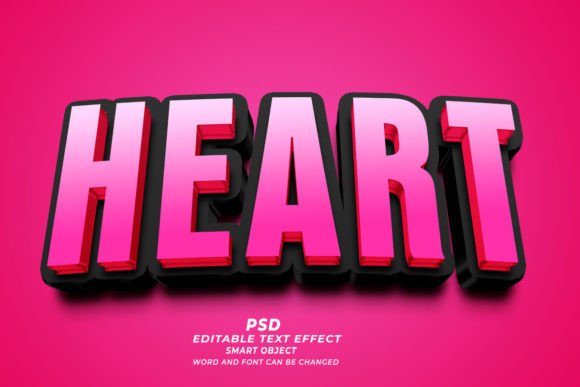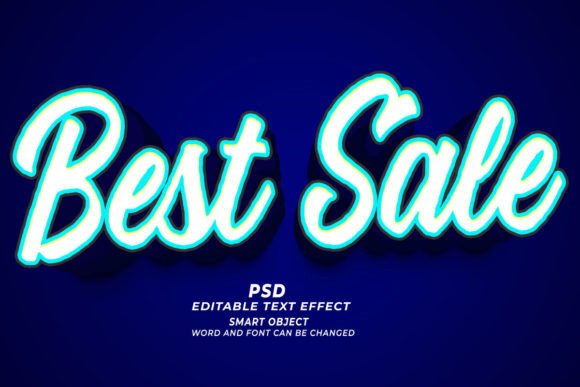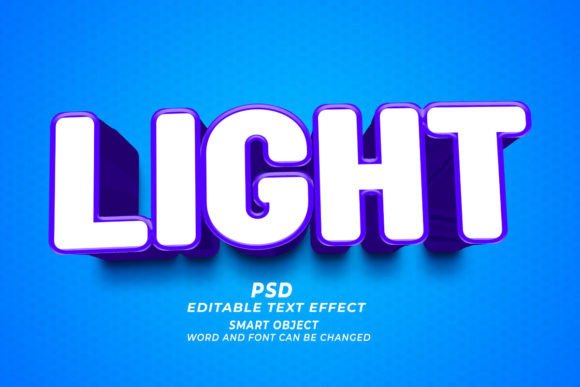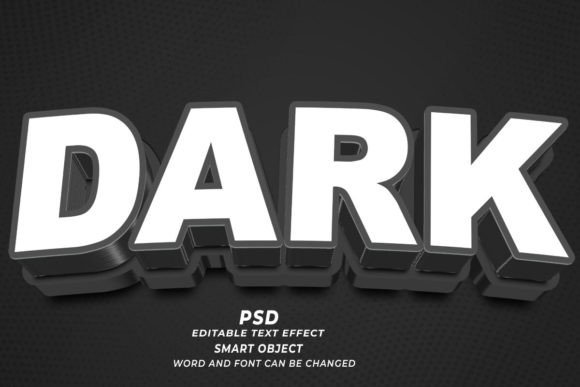
Mastering the Winner PSD 3D Editable Text Effect for Professional Design Results
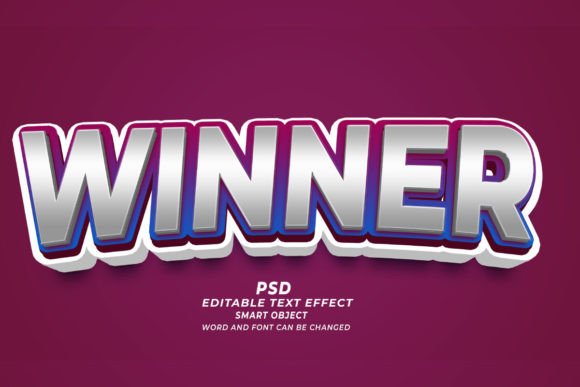
In the fast-paced world of digital marketing and print-on-demand, visual impact is everything. Whether you are designing a book cover for Amazon KDP, creating a web banner, or printing custom T-shirts, typography often carries the weight of your message. This is where the Winner PSD 3D Editable Text Effect becomes an invaluable asset for creators. It offers a shortcut to high-end, three-dimensional typography without requiring advanced modeling skills or hours of manual rendering. However, simply downloading a template is not enough. Many users stumble not because the tool is flawed, but because they misunderstand how to integrate these smart objects into their specific workflows effectively.
Understanding the mechanics behind this Photoshop editable text effect is the first step toward avoiding common pitfalls. The core appeal lies in its simplicity: you open the file, locate the smart object layer, replace the placeholder text, and save. The software automatically updates the 3D rendering, lighting, and shadows. Yet, this "click and edit" convenience can lead to complacency. Designers often overlook critical details regarding resolution, font compatibility, and context, resulting in outputs that look generic or technically unsuitable for their intended medium.
The Resolution Trap: Why 300 DPI Matters More Than You Think
One of the most frequent mistakes beginners make is ignoring the resolution settings before they begin editing. The Winner PSD 3D Editable Text Effect is marketed as a high-resolution 300 DPI resource, which is ideal for print materials like marketing brochures, posters, and KDP book covers. However, if you inadvertently resize the canvas or export the final image at 72 DPI—the standard for web screens—you compromise the quality for print purposes. Conversely, using a massive 300 DPI file for a small web banner can slow down your website’s loading speed unnecessarily.
To avoid this, always check your document size and resolution requirements before opening the PSD. If you are designing for a T-shirt or a physical product, ensure you maintain the 300 DPI setting throughout the editing process. For digital-only assets like social media posts or web headers, you can work at 300 DPI for maximum clarity and then downsample upon export. This approach ensures your text remains crisp and professional, regardless of the final output medium.
Font Selection and Legibility in 3D Space
Another common oversight involves font choice. While the template allows you to change fonts easily, not every typeface works well with 3D extrusion. Thin, delicate scripts may lose their structural integrity when rendered in three dimensions, appearing fragile or disappearing entirely against complex backgrounds. On the other hand, overly bold fonts might create excessive depth that looks cluttered or amateurish if the lighting effects are not adjusted accordingly.
When using this Photoshop text effect, test your chosen font early in the process. Ask yourself: Is the text readable from a distance? Does the 3D effect enhance the message or distract from it? For instance, if you are creating a marketing material for a luxury brand, a sleek, moderate-weight sans-serif might convey sophistication better than a heavy, blocky serif. Remember, the tool provides the effect, but you provide the design judgment. Taking a moment to preview different font weights can save you from having to redo the entire composition later.
Contextual Integration: Beyond the Text Box
A significant misunderstanding among users is treating the text effect as an isolated element. The Winner PSD 3D Editable Text Effect is powerful, but it must harmonize with the rest of your design. A common error is placing highly detailed 3D text over a busy background without adjusting contrast or lighting. This results in visual noise where the text fails to pop, defeating the purpose of using a 3D effect in the first place.
To correct this, consider the environment around your text. If you are designing a web banner, ensure there is sufficient negative space or a simplified background layer behind the text. Use adjustment layers in Photoshop to tweak the brightness and contrast of the background so the 3D text stands out naturally. Additionally, pay attention to the direction of the light source in the 3D effect. If your background image has sunlight coming from the left, but your 3D text casts shadows to the right, the composition will look unrealistic and disjointed. Aligning these elements creates a cohesive and professional look.
Licensing and Commercial Use Considerations
For entrepreneurs and freelancers, understanding licensing is crucial. While the PSD file itself may be purchased for commercial use, the fonts embedded within the smart objects might have separate licensing restrictions. Many designers assume that because they bought the template, they can use any font within it for client work. This is a risky assumption. Always verify the license of the specific fonts used in the demo. If they are not free for commercial use, you must purchase the appropriate license or substitute them with fonts you already own.
This step protects you from potential legal issues and ensures ethical design practices. It also encourages creativity, as finding alternative fonts that match the 3D style can lead to more unique and branded results. Keep a library of commercially licensed fonts ready to swap into the smart object, ensuring your final product is both legally sound and visually distinct.
Optimizing Workflow for Efficiency
Finally, efficiency is key when using editable text effects. Some users open the smart object, make changes, save, and then realize they made a typo or want to adjust the kerning. This back-and-forth can be time-consuming. To streamline your workflow, draft your text in a separate document first. Check for spelling, grammar, and line breaks before pasting it into the smart object. This simple habit reduces the number of times you need to refresh the 3D rendering, saving valuable time during tight deadlines.
Moreover, take advantage of the non-destructive nature of smart objects. You can experiment with different colors, textures, and lighting settings without permanently altering the original text layer. This flexibility allows you to present multiple variations to clients or choose the best option for your campaign without starting from scratch.
In conclusion, the Winner PSD 3D Editable Text Effect is a robust tool for enhancing your design projects, from POD products to corporate marketing materials. By paying attention to resolution, font suitability, contextual integration, licensing, and workflow efficiency, you can avoid common mistakes and elevate the quality of your work. The technology handles the heavy lifting of 3D rendering, but your strategic decisions determine the final success of the design. Use these insights to make informed choices, ensuring your visuals are not only striking but also professional and fit for purpose.